| # A statically generated blog example using Next.js and Prepr |
|
|
| This example showcases Next.js's [Static Generation](https://nextjs.org/docs/basic-features/pages) feature using [Prepr](https://prepr.io/) as the data source. |
|
|
| ## Demo |
|
|
| Check out our Blog page example: |
|
|
| - **Live**: [https://next-blog-prepr.vercel.app/](https://next-blog-prepr.vercel.app/) |
| - **Preview**: [https://next-blog-prepr.vercel.app/api/preview...](https://next-blog-prepr.vercel.app/api/preview?secret=237864ihasdhj283768&slug=blueberry-cheesecake) |
|
|
| ## How to use |
|
|
| Execute [`create-next-app`](https://github.com/vercel/next.js/tree/canary/packages/create-next-app) with [npm](https://docs.npmjs.com/cli/init), [Yarn](https://yarnpkg.com/lang/en/docs/cli/create/), or [pnpm](https://pnpm.io) to bootstrap the example: |
|
|
| ```bash |
| npx create-next-app --example cms-prepr cms-prepr-app |
| ``` |
|
|
| ```bash |
| yarn create next-app --example cms-prepr cms-prepr-app |
| ``` |
|
|
| ```bash |
| pnpm create next-app --example cms-prepr cms-prepr-app |
| ``` |
|
|
| ## Configuration |
|
|
| ### Step 1. Set up Prepr |
|
|
| **1.1** First, [sign up for a Prepr account](https://signup.prepr.io/). |
|
|
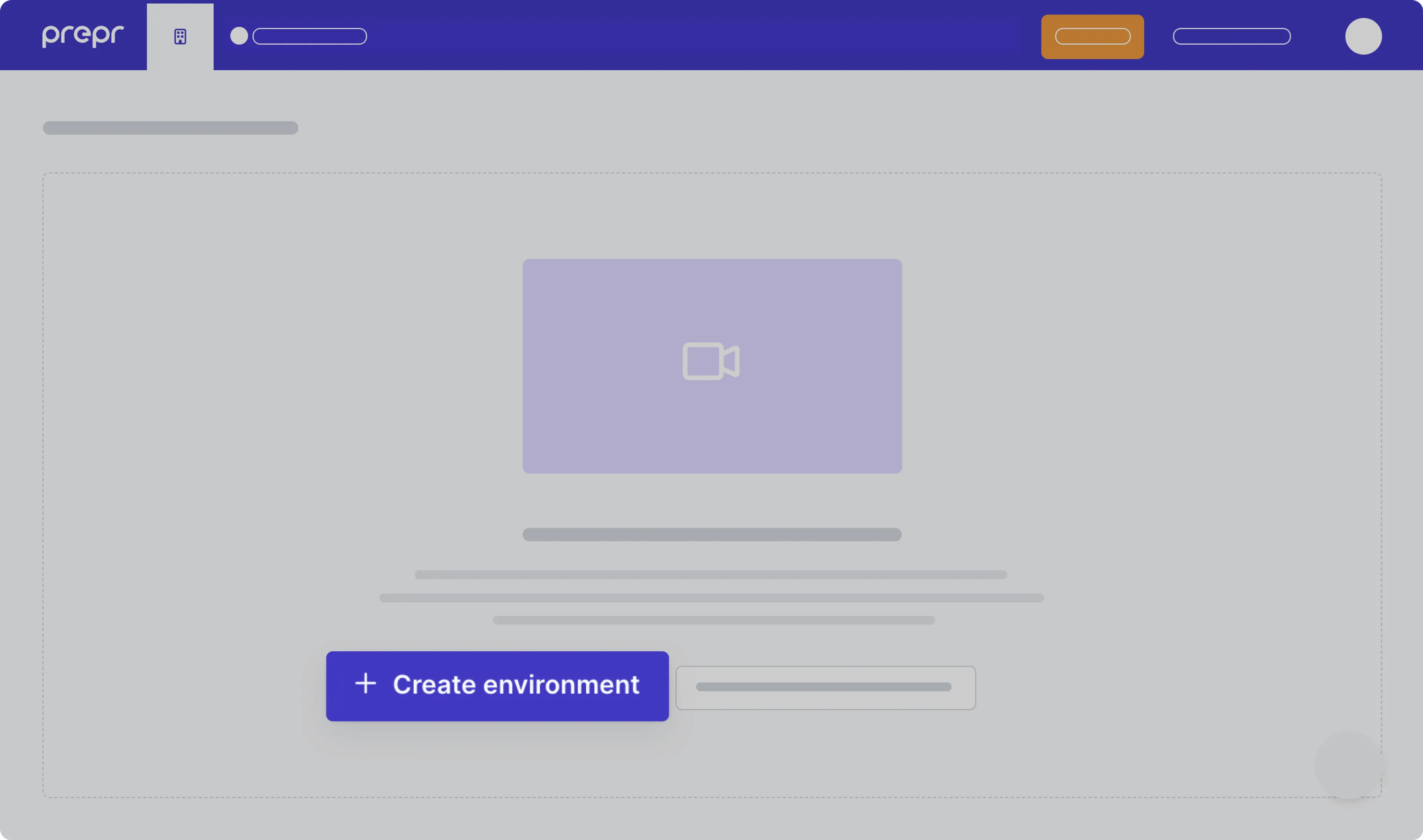
| **1.2** After you sign up, create a new environment in Prepr. For more details, [check out the environment docs](https://docs.prepr.io/developing-with-prepr/set-up-environments). |
|
|
|  |
|
|
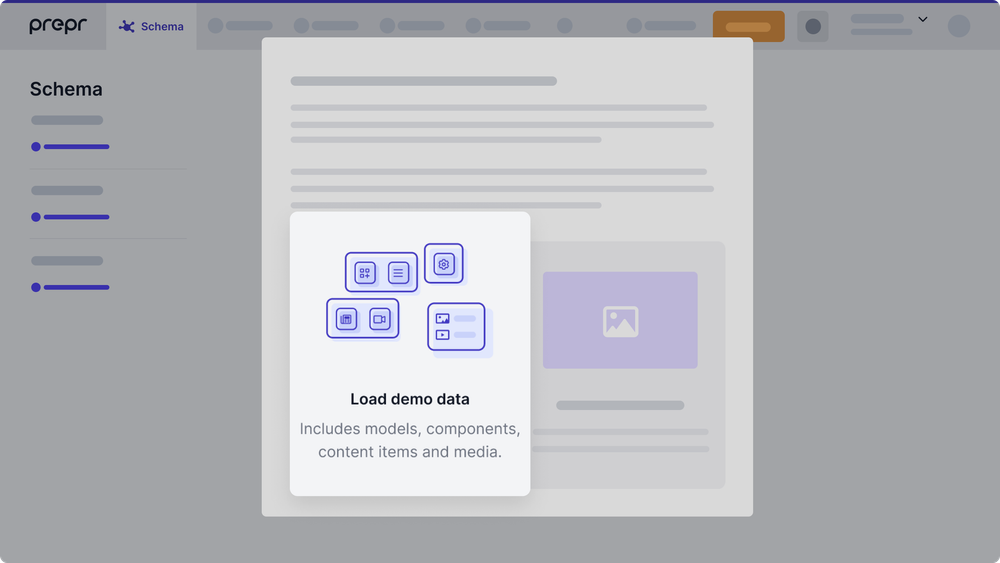
| **1.3** Once you’ve created the environment, choose to **Load demo data**. With that, Prepr will automatically upload sample models, content items, and other data you can use for your example Next.js app. |
|
|
|  |
|
|
| ### Step 2. Set up environment variables |
|
|
| Once you’ve set up your Prepr environment, you can define environment variables for your project. Please proceed with the steps below. |
|
|
| **2.1** Run the following command to copy and rename the `.env.local.example` file as follows: |
|
|
| ```bash |
| cp .env.local.example .env.local |
| ``` |
|
|
| The `.env.local` file will be ignored by Git. |
|
|
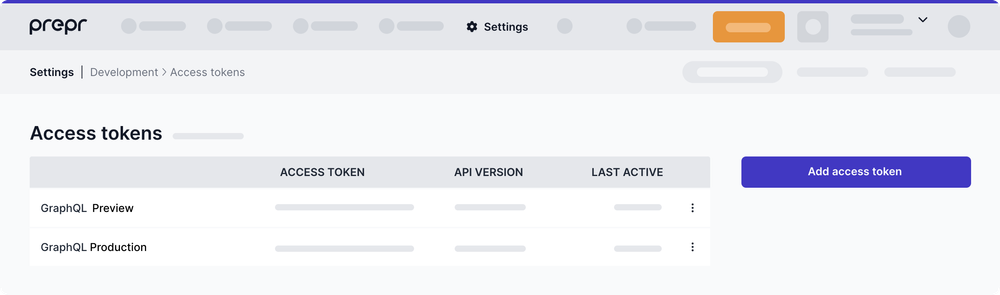
| **2.2** In your environment, navigate to **Settings > Access Tokens**. You will see the automatically generated access tokens for your Prepr environment. |
|
|
|  |
|
|
| Copy the _GraphQL Production_ access token and paste it as the `PREPRIO_PRODUCTION_TOKEN` variable in `.env.local`. Then copy and paste the _GraphQL Preview_ access token as the `PREPRIO_PREVIEW_TOKEN` variable. |
|
|
| Alternatively, you can create access tokens yourself by clicking **Add access token**. If so, make sure to [choose the right GraphQL permissions](https://docs.prepr.io/reference/graphql/v1/authorization) for the access tokens. |
|
|
| **2.3** Set a custom value with no spaces as the `PREPRIO_PREVIEW_SECRET` variable, for example, a UUID. This value will be used to enable [preview mode](https://nextjs.org/docs/advanced-features/preview-mode). |
|
|
| Once done, your `.env.local` file should look like this: |
|
|
| ```bash |
| PREPRIO_API=https://graphql.prepr.io/graphql |
| PREPRIO_PRODUCTION_TOKEN='your Production access token' |
| PREPRIO_PREVIEW_TOKEN='your Preview access token' |
| PREPRIO_PREVIEW_SECRET='your secret id' |
| ``` |
|
|
| ### Step 3. Run Next.js in development mode |
|
|
| Now that you've finished preparing the project, you may proceed to run it. |
|
|
| **3.1** Execute one of the following commands to install the packages listed in the `package.json` file: |
|
|
| ```bash |
| npm install |
| ``` |
|
|
| ```bash |
| yarn install |
| ``` |
|
|
| **3.2** Execute one of the following commands to run the dev script defined in the `package.json` file: |
|
|
| ```bash |
| npm run dev |
| ``` |
|
|
| ```bash |
| yarn dev |
| ``` |
|
|
| Your example Blog website should be up and running on [http://localhost:3000](http://localhost:3000). If it doesn't work, please post on [GitHub discussions](https://github.com/vercel/next.js/discussions). |
|
|
| ### Step 4. Optional: Try Preview mode |
|
|
| Great progress has been made! You are just a few steps away from getting your example website live. |
| Before proceeding, you can test how the content preview works in Prepr. This step is optional. Proceed to Step 5 if you don’t want to use preview mode. |
|
|
| To try preview mode, follow these steps: |
|
|
| **4.1** In Prepr, go to one of the content items of the _Article model_ and update the item title. For example, you can add _[PREVIEW]_ in front of the title. After you edit the content item, save it with the _Review status_. |
|
|
| **4.2** To preview the content item, transform its URL to the following format: |
|
|
| `http://localhost:3000/api/preview?secret=<PREPRIO_PREVIEW_SECRET>&slug=<SLUG_TO_PREVIEW>`, |
| where: |
|
|
| - `<PREPRIO_PREVIEW_SECRET>` is the same preview secret you defined in the `.env.local` file; |
| - `<SLUG_TO_PREVIEW>` is the slug of the content item you want to preview. |
|
|
| **Note:** To exit the preview mode, you must click on **Click here to exit preview mode** at the top of the page. |
|
|
|  |
|
|
| ### Step 5. Deploy on Vercel |
|
|
| To make your Next.js app available online, deploy it to the cloud using [Vercel](https://vercel.com/?utm_source=github&utm_medium=readme&utm_campaign=next-example). Vercel provides a user-friendly platform for deploying and managing web applications. For more information, please [refer to the Next.js documentation](https://nextjs.org/docs/deployment). |
|
|
| You can go for one of the following options: |
|
|
| - **Deploy your local project**</br> |
| To deploy your local project to Vercel, push it to GitHub/GitLab/Bitbucket and [import it to Vercel](https://vercel.com/new?utm_source=github&utm_medium=readme&utm_campaign=next-example). |
|
|
| **Important:** When you import your project on Vercel, make sure to click on **Environment Variables** and set them to match your `.env.local` file. |
|
|
| - **Deploy from our template**</br> |
| Alternatively, you can deploy using our template by clicking on the **Deploy** button below. |
|
|
| [](https://vercel.com/new/clone?repository-url=https://github.com/vercel/next.js/tree/canary/examples/cms-prepr&project-name=cms-prepr&repository-name=cms-prepr&env=PREPRIO_API,PREPRIO_PRODUCTION_TOKEN,PREPRIO_PREVIEW_TOKEN,PREPRIO_PREVIEW_SECRET&envDescription=Required%20to%20connect%20the%20app%20with%20Prepr&envLink=https://vercel.link/cms-prepr-env) |
|
|
| ## Next steps |
|
|
| For more advanced topics, please refer to the Prepr’s documentation: |
|
|
| - [A/B testing](https://docs.prepr.io/optimization-and-personalization/ab-testing) |
| - [Personalization](https://docs.prepr.io/optimization-and-personalization/personalized-stack) |
| - [Recommendations](https://docs.prepr.io/optimization-and-personalization/recommendations) |
|
|
| If you have questions, please [get in touch](https://prepr.io/get-in-touch) with one of our specialists or [join our Slack community](https://slack.prepr.io/). |
|
|
| ## Related examples |
|
|
| - [AgilityCMS](/examples/cms-agilitycms) |
| - [Builder.io](/examples/cms-builder-io) |
| - [ButterCMS](/examples/cms-buttercms) |
| - [Contentful](/examples/cms-contentful) |
| - [Cosmic](/examples/cms-cosmic) |
| - [DatoCMS](/examples/cms-datocms) |
| - [DotCMS](/examples/cms-dotcms) |
| - [Drupal](/examples/cms-drupal) |
| - [Enterspeed](/examples/cms-enterspeed) |
| - [Ghost](/examples/cms-ghost) |
| - [GraphCMS](/examples/cms-graphcms) |
| - [Kontent.ai](/examples/cms-kontent-ai) |
| - [MakeSwift](/examples/cms-makeswift) |
| - [Payload](/examples/cms-payload) |
| - [Plasmic](/examples/cms-plasmic) |
| - [Prepr](/examples/cms-prepr) |
| - [Prismic](/examples/cms-prismic) |
| - [Sanity](/examples/cms-sanity) |
| - [Sitecore XM Cloud](/examples/cms-sitecore-xmcloud) |
| - [Sitefinity](/examples/cms-sitefinity) |
| - [Storyblok](/examples/cms-storyblok) |
| - [TakeShape](/examples/cms-takeshape) |
| - [Tina](/examples/cms-tina) |
| - [Umbraco](/examples/cms-umbraco) |
| - [Umbraco heartcore](/examples/cms-umbraco-heartcore) |
| - [Webiny](/examples/cms-webiny) |
| - [WordPress](/examples/cms-wordpress) |
| - [Blog Starter](/examples/blog-starter) |
|
|

